Key Performance Indicators (KPIs)
A Key Performance Indicator (KPI) is a measurable value used to evaluate how effectively a product, feature, or initiative is achieving its objectives. Organizations typically manage multiple products and initiatives, but without a consistent mechanism to define and monitor success metrics, it becomes difficult to track progress and determine whether goals have been achieved.
The KPI feature in the Calibo Accelerate platform provides a structured way to define, manage, and track performance indicators directly within the platform. It enables users to establish measurable success criteria and monitor progress against those metrics.
Where KPIs Can Be Defined
In Calibo Accelerate, you can define KPIs at two levels:
-
Product Level: Measure overall product success and strategic objectives.
-
Feature Level: Track specific feature performance and link to product-level goals.
This hierarchical approach allows teams to measure success across different layers of product development and maintain alignment between feature-level work and strategic product initiatives.
Why KPIs Are Important for Products
KPIs help organizations define, measure, and evaluate product success throughout the lifecycle.
-
Establish Clear Success Criteria: KPIs clarify how success will be measured before development begins. This ensures all stakeholders share the same definition of success and can track progress against measurable expectations.
-
Align with Organizational Goals: Products and features are often linked to strategic goals and initiatives. KPIs help track whether these goals are being achieved.
-
Enable data-driven decisions: KPIs provide measurable insights that help teams evaluate performance and make informed decisions.
-
Track product and feature performance: KPIs allow organizations to measure outcomes across both products and individual features.
-
Ensure accountability: By defining measurable targets, KPIs enable teams to assess whether initiatives have delivered the intended results.
 Create Product‑Level KPIs
Product-level KPIs measure overall product success and strategic objectives. These serve as parent KPIs that feature-level KPIs can reference.
Follow these steps to create a product level KPI:
-
Sign in to the Calibo Accelerate platform, click Products in the left navigation pane.
-
On the My Products tab, choose the product to which you want to add a KPI.
-
On the product detail screen, click the ellipsis (...) in the upper right corner and then click View Details or Edit.
-
On the Edit Product screen, under the KPIs tab, click + New KPI.
-
On the New KPI side panel, provide the following information:
Field Description Name Enter a clear and descriptive name for the KPI. Description Provide a short explanation of what the KPI measures or represents. Measurement Defines how the success of the KPI is measured (e.g., percentage, numeric value). Target The specific measurable value that indicates successful achievement of the KPI. Actual (Optional) The current measured value for the KPI. This field can be updated over time. Time Horizon Defines the evaluation period for the KPI (for example: monthly, quarterly, half-yearly, etc.). Select a time horizon from the drop-down list or create a custom time horizon if the predefined options do not meet your requirements. Type Indicates the category or nature of the KPI, such as Growth, Cost, Quality, Risk, or Adoption. Select a type from the drop-down list or create a custom type if needed. Status Represents the current state of the KPI and aligns with the product progress (for example: Draft, On Track, Achieved). Select a status from the drop-down list or create a custom status if needed.
-
Click Create to save the new KPI.
The new KPI will be added and displayed in the tabular format.
Create Feature-Level KPIs
Feature-level KPIs track specific feature performance and can be linked to product-level KPIs to show how feature work contributes to product objectives.
Follow these steps to create a feature level KPIs:
-
Sign in to the Calibo Accelerate platform, click Products in the left navigation pane.
-
On the Products screen, choose your desired product and the feature within the product, where you want to add the new KPI.
-
On the feature detail screen, click the ellipsis (...) in the upper right corner and then click View Details or Edit.
-
On the Edit Feature screen, under the KPIs tab, click + New KPI.
-
On the New KPI side panel, provide the following information:
| Field | Description |
|---|---|
| Name | Enter a clear and descriptive name for the KPI. |
| Description | Provide a short explanation of what the KPI measures or represents. |
| Measurement | Defines how the success of the KPI is measured (e.g., percentage, numeric value). |
| Target | The specific measurable value that indicates successful achievement of the KPI. |
| Actual (Optional) | The specific measurable value that indicates the actual value of the KPI. |
| Time Horizon | Defines the evaluation period for the KPI (for example: monthly, quarterly, half-yearly, etc.). Select a time horizon from the drop-down list or create a custom time horizon if the predefined options do not meet your requirements. |
| Type | Indicates the category or nature of the KPI, such as Growth, Cost, Quality, Risk, or Adoption. Select a type from the drop-down list or create a custom type if needed. |
| Status |
Represents the current state of the KPI and aligns with the product or feature progress (for example: Draft, On Track, Achieved). Select a status from the drop-down list or create a custom status if needed. |
| Reference KPI (Optional) |
Select a product-level KPI from the dropdown and link it to the feature-level KPI. Only product-level KPIs are listed in the dropdown. 
Note:This field is not available when creating KPIs at the product level. It appears only when creating KPIs for features, enabling linkage to existing product KPIs. |
-
Click Create to save the new KPI.
The new KPI will be added and displayed in the tabular format.
KPI List View
The KPI tab displays all created KPIs in a tabular format, allowing you to easily view, search, and manage KPI entries associated with a product or feature.
Each KPI entry displays the following information:
| Field | Description |
| Name | The name of the KPI that identifies the metric being tracked. |
| Description | A short explanation of what the KPI measures. |
| Type | The category of the KPI (for example: Delivery, Quality, Growth, etc.). |
| Measurement | Defines how the KPI performance is measured. |
| Actual | The current measured value of the KPI. |
| Target | The expected value that indicates successful achievement of the KPI. |
| Time Horizon | The time period over which the KPI is evaluated (for example: Weekly, Monthly, Quarterly). |
| Status | Indicates the current progress of the KPI (for example: Draft, On Track, Achieved). |
| Reference KPI |
Displays the linked product-level KPI associated with the feature-level KPI.
Note:The Reference KPI field is available only when creating KPIs at the feature level. This field is not available for product-level KPIs. |
| Created By | The user who created the KPI. |
| Created On | The date and time when the KPI was created. |
| Modified By | The user who last updated the KPI. |
| Modified On | The date and time when the KPI was last modified. |
Managing KPIs (Search / Edit / Delete)
The KPIs section allows you to search, edit, and delete KPI associated with a product or feature. These options help you maintain accurate performance data and ensure KPIs remain aligned with business goals.
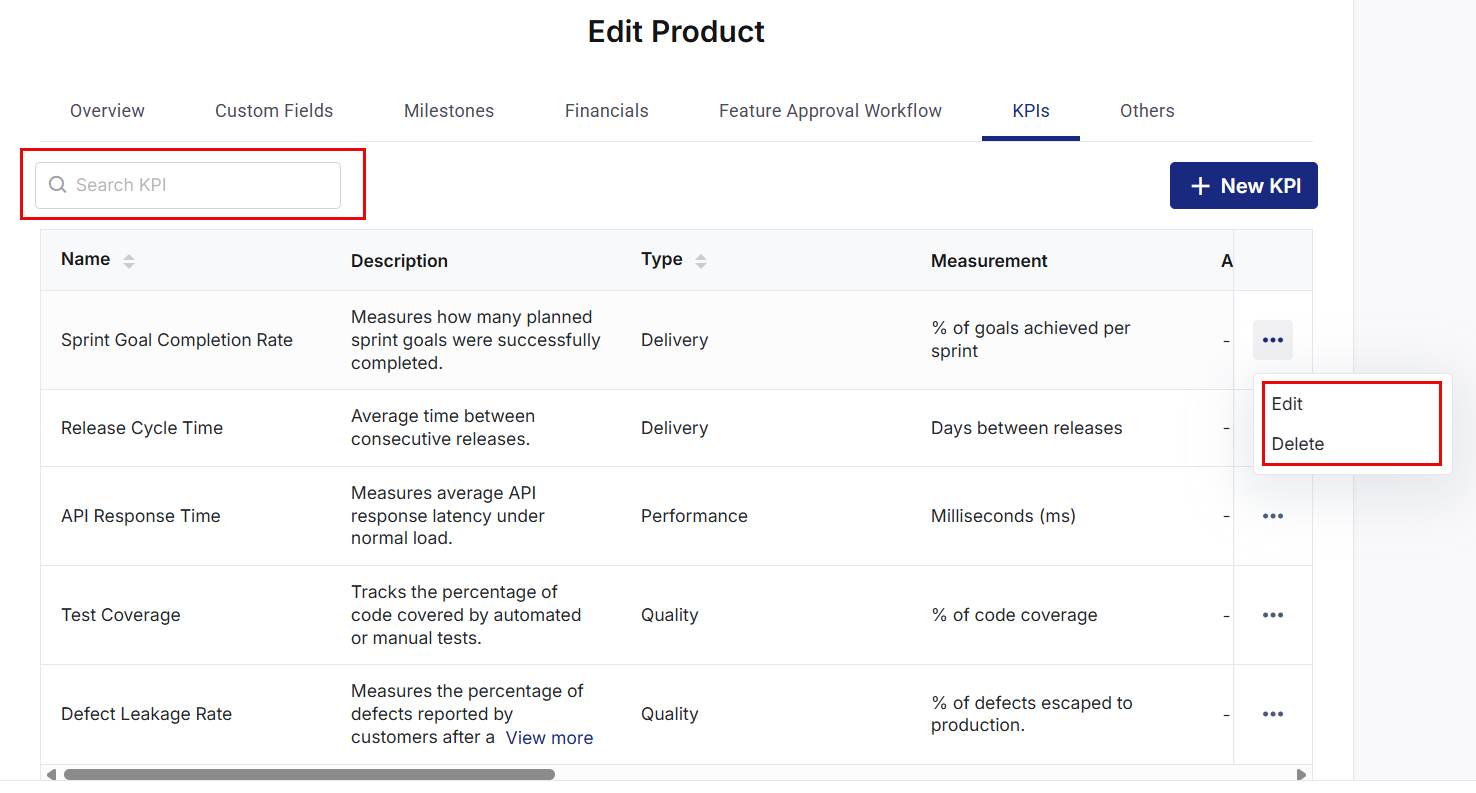
Search KPIs
You can quickly locate specific KPIs using the Search KPI field. This is especially useful when multiple KPIs are defined for a product or feature.
To search for a KPI:
-
Navigate to the KPI tab within the product or feature.
-
In the Search KPI field, enter the KPI name or a relevant keyword.
-
The system automatically filters the list and displays matching KPIs.
This helps you identify and access the required KPI efficiently.
Edit a KPI
Use the Edit option when KPI targets, measurements, or other information need to be updated.
To edit a KPI:
-
Navigate to the KPI tab within the product or feature.
-
Locate the KPI you want to update.
-
Click the ellipsis (…) associated with the KPI.
-
Select Edit.
-
Modify the required fields.
-
Click Save to update the KPI.
After the update, the system records Modified By and Modified On details to maintain an audit trail.
Delete a KPI
Delete a KPI when it is no longer relevant or needed for tracking.
To delete a KPI:
-
Navigate to the KPI tab within the product or feature.
-
Locate the KPI you want to delete.
-
Click the ellipsis (…) associated with the KPI.
-
Select Delete.
-
In the confirmation dialog, provide the comments and click Delete.
The KPI is removed once the deletion is confirmed.
Audit and Tracking
All KPI-related activities are logged for transparency and traceability. Actions such as creating, updating, and deleting KPIs are recorded to ensure that KPI changes can be reviewed when needed. To view the complete audit trail for KPI changes, See Product Audit Logs.
| Recommended Topics
|
What's next? Phases of a Product |